

Moving large files can be tiring and tedious at times specially when we are moving files between different devices. Most of us are aware of how to copy large files with the Copy and Paste commands. But it’s a little tricky while moving a huge database. You can try out different ways to copy large files in Windows.
While moving multiple files at a time, there are chances of sluggishness or slow speed while copying or the copier may crash if there are a lot of files transferring. You can make use of inbuilt features, copy paste methods, command lines or other utility tools to transfer the files.
This article on how to copy large files in Windows 10 will explore different ways to copy and move data among Windows devices or other portable devices. Moving files between smartphones and Windows PCs can also be tiring if it takes a lot of time. Let’s explore ways to expedite the process without any data loss.
Simple Copy & Paste
We all know that we can Copy large files in Windows and Paste files on a different drive. You can Copy single files or use the Ctrl button to select files with mouse clicks and press Ctrl C to copy them. Ctrl + A command can help you to select all the files or folders in the directory.
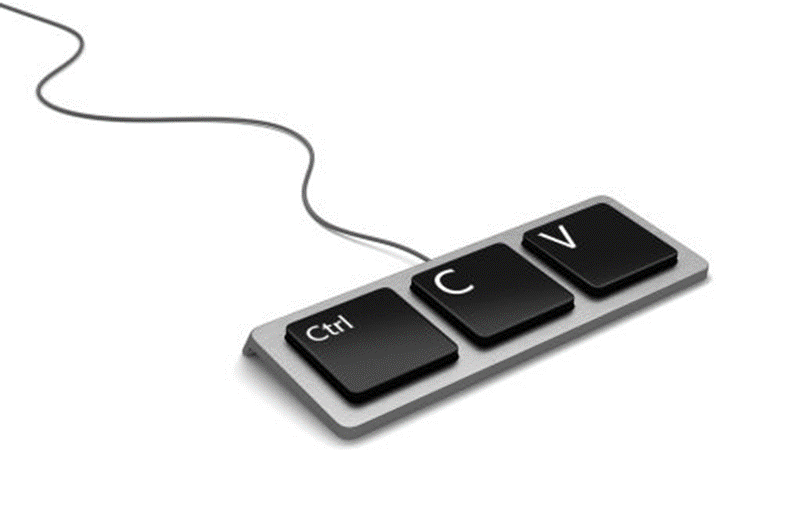
Once copied, go to the destination folder and Paste (Ctrl + V) files on the destination drive. If you wish to move files from one drive to another, use Ctrl + X to Cut files and then go to the destination folder and press Ctrl + V to paste files. Click on the first file, hold down the Shift key and click on the last file in the folder to select all the files in sequence.
Upgrade HDD to SDD
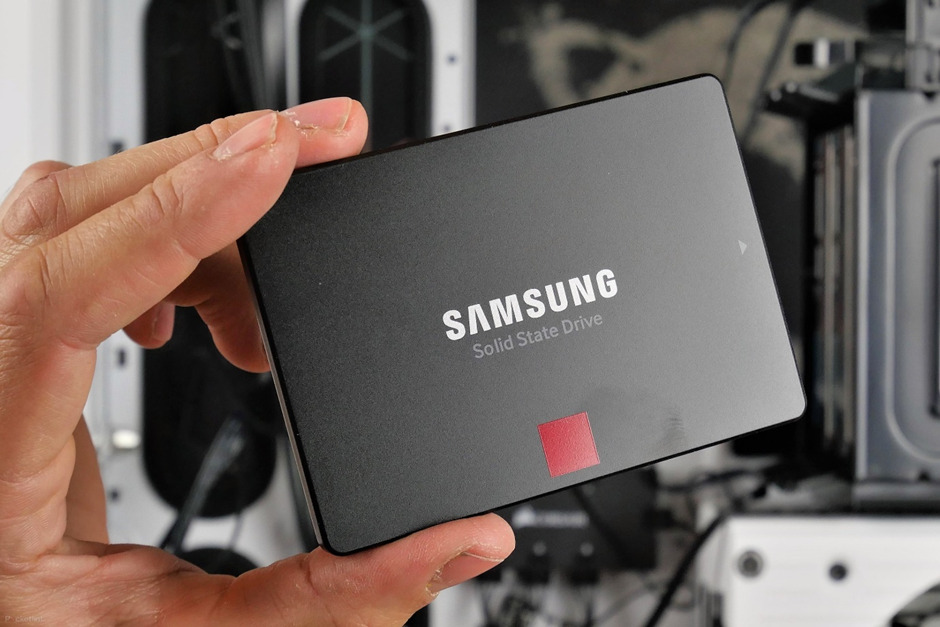
An SDD is much faster than a Hard Drive (HDD) as the Solid State Drive (SDD) comes with a faster spinning speed. Users with an old hard drive should consider upgrading it to an SDD. You can simply connect the SDD and create an image of the current HDD. Disk Management utility can help you in creating a system image of the hard drive on the SDD. A better USB connectivity cable can also help you copy large files in Windows with reduced time.
Transfer Compressed Files
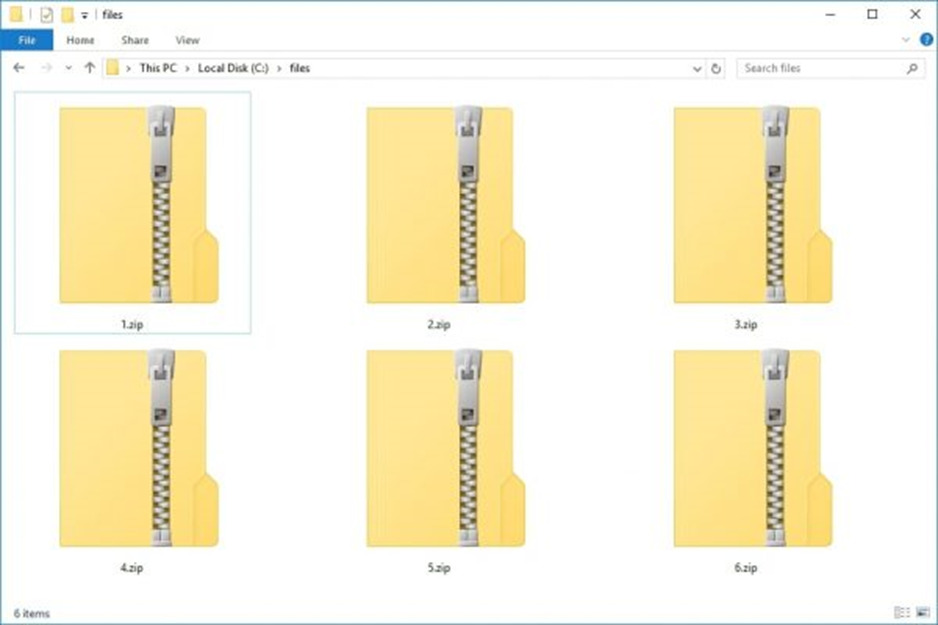
Compressed files are smaller in size in terms of regular files. It’s easy to zip files or compress files using the Windows WinZip or WinRAR utility to reduce the size of the selected large files. Once compressed, you can transfer the Zip Files to the destination folder. Instead of multiple files and folders, a single file will be moved to the destination folder where we can extract the files back to normal.
Use Windows 10 or 11 for Better Copying Utilities
Unlike Windows 7, 8 or 8.1, Windows 10 and Windows 11 comes with better copying utilities. It shows a graphical representation of moving files along with the speed and gives you the option to pause or resume a copy function. You can process multiple files or multiple transfers at a time. The Copy & Paste utility shows you the process and the speed with the file name to track the copy in progress.
Copy Large File in Windows with Robocopy Command
The Windows command line is a little offbeat and not all users are so friendly with these commands. If you are geeky with the command line, you can make use of one of the copy commands. On the other hand, the command line works with speed and accuracy in transferring or moving files. You can follow these commands to make it happen. Get familiar with the Robocopy Command Syntax.
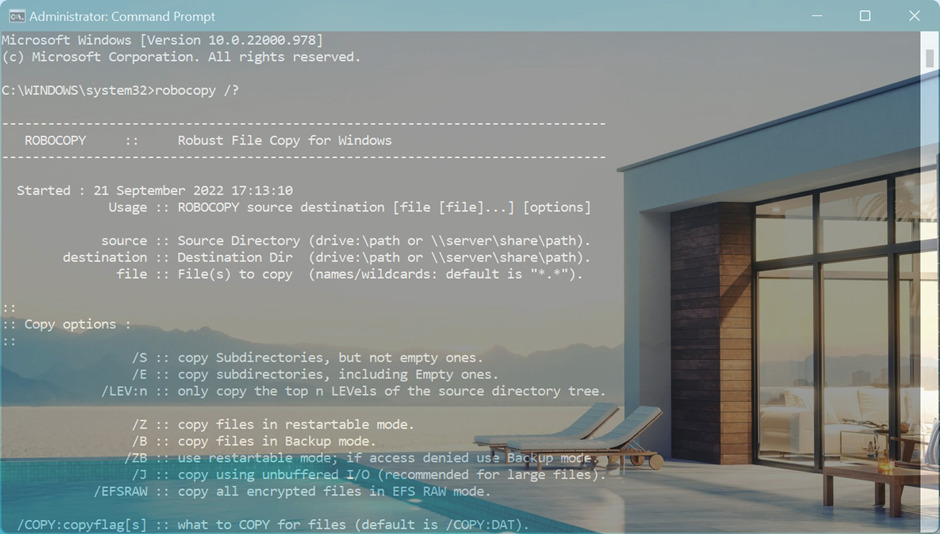
Step 1. Press the Window key and type CMD.
Step 2. Click on the Run as Administrator in Command Prompt options.
Step 3. Command Prompt window will open. Type robocopy /? To get syntax and other commands to move or copy large files in Windows.
robocopy c:\temp\source c:\temp\destination /E /DCOPY:DAT /R:10 /W:3
Step 4. Use the command line syntax and give a proper path to copy files from a folder. Use the Paste command to move the files to a different location.
Use Apps & Software to Copy Faster
Apart from the above manual solutions, if you handle a lot of data and copy too large files on Windows, you can make use of the best file copier utility. There are dozens of apps and software available specially designed for a faster copying experience. We have compared, reviewed and listed the best one compatible with Windows 11 and earlier versions.
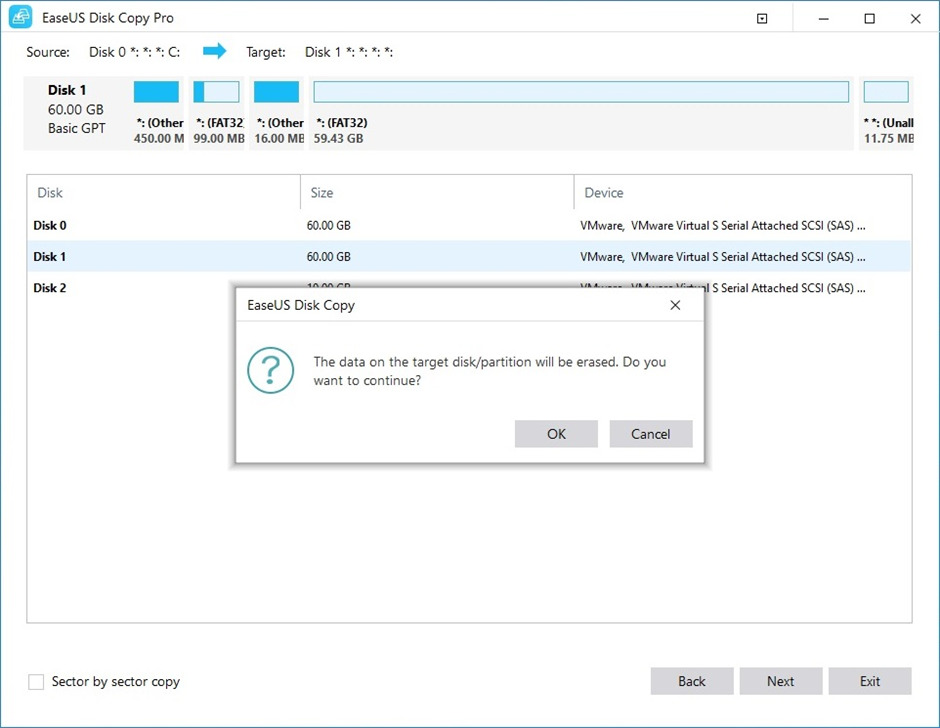
EaseUS Disk Copy utility is one of the popular, compatible, and innovative file copy software for Windows 11 and earlier versions. You can clone the entire hard drive partition, create disk image, or manage your hard drive data with ease. You can also create a bootable copy of your Windows to boot using a different storage drive. It offers you a variety of advanced tools for data migration with safety and security.
Summing Up
This article on how to copy large files has got the best practices to copy large files in Windows and migrate your data with ease. You can explore how to copy large files in Windows 10 manually or with the best utilities and tools to copy too large files. Never miss a file with the best practices to migrate your data.
